
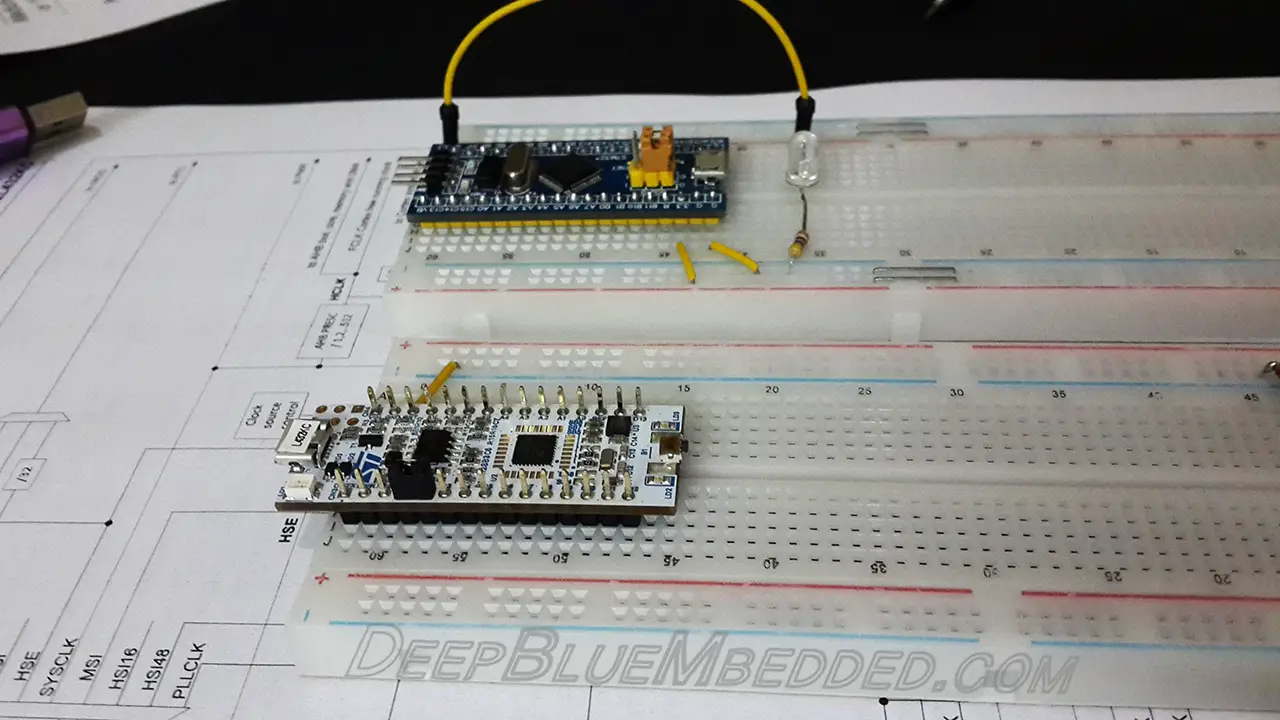
In this tutorial, we’ll discuss implementing an STM32 Serial Print using UART and display the debug data on STM32CubeIDE Serial Monitor & Serial Terminal on a PC using a USB-TLL Converter. We’ll perform the STM32 serial print examples using the STM32 Blue Pill board and the Nucleo32-L432KC board.
As we’ve seen in an earlier tutorial the STM32 Serial Wire Debug (SWD) Trace feature requires access to the SWO pin which is not accessible directly in the ST-Link v2 USB clone, and also not connected on the Nucleo32-L432KC board. So we weren’t able to test the SWD trace! However, there are still a couple of other methods to debug your projects, one of which is the UART serial print. And that’s what we’ll do in the tutorial.
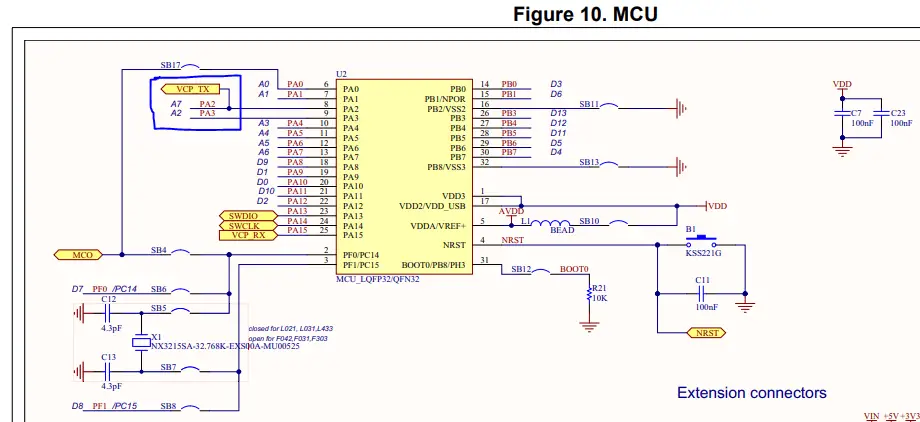
The STM32L432KC microcontroller has 3 USART modules (USART1, USART2, and USART3). You can actually use any one of them to send serial data to your PC’s terminal using a USB-TTL converter. However, the USART2 module is connected to the onboard ST-Link programmer/debugger and it gets a virtual COM port on your PC. So there is no need to connect an external USB-TTL converter if you’re using USART2 peripheral. And that’s what we’re going to do in this section.
Here is the schematic diagram for the Nucleo32 board where you can see the pins PA2, PA3 (RX, TX For USART2) are connected to the onboard ST-Link MCU. I’ll have to check other Nucleo boards if this holds true for all other boards or not. You can also double-check the schematic to make sure which USART module is being used for the virtual COM serial port communication.
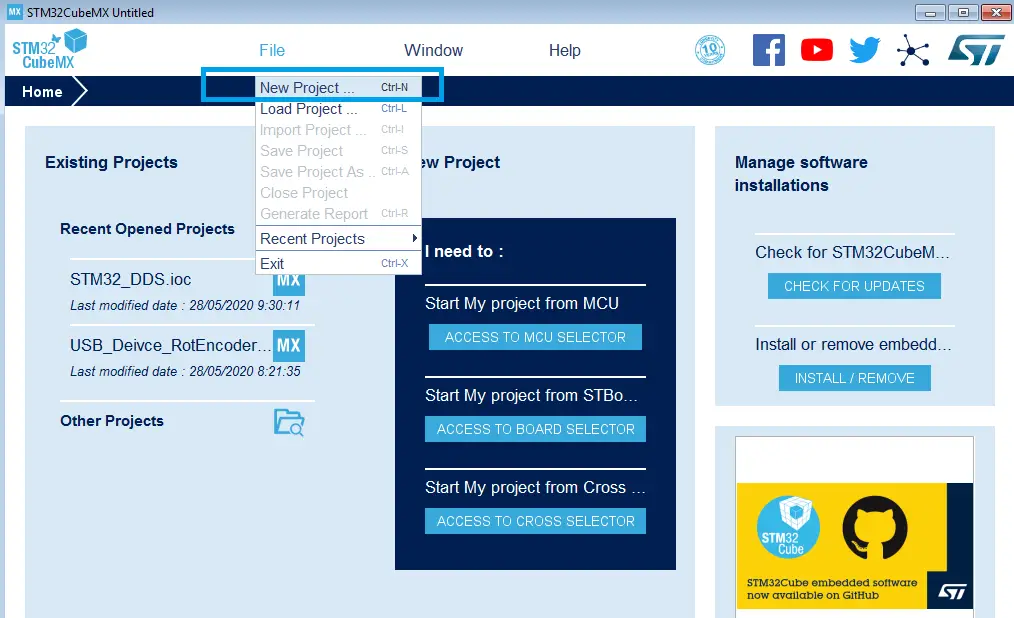
Step #1
Open CubeMX & Create New Project
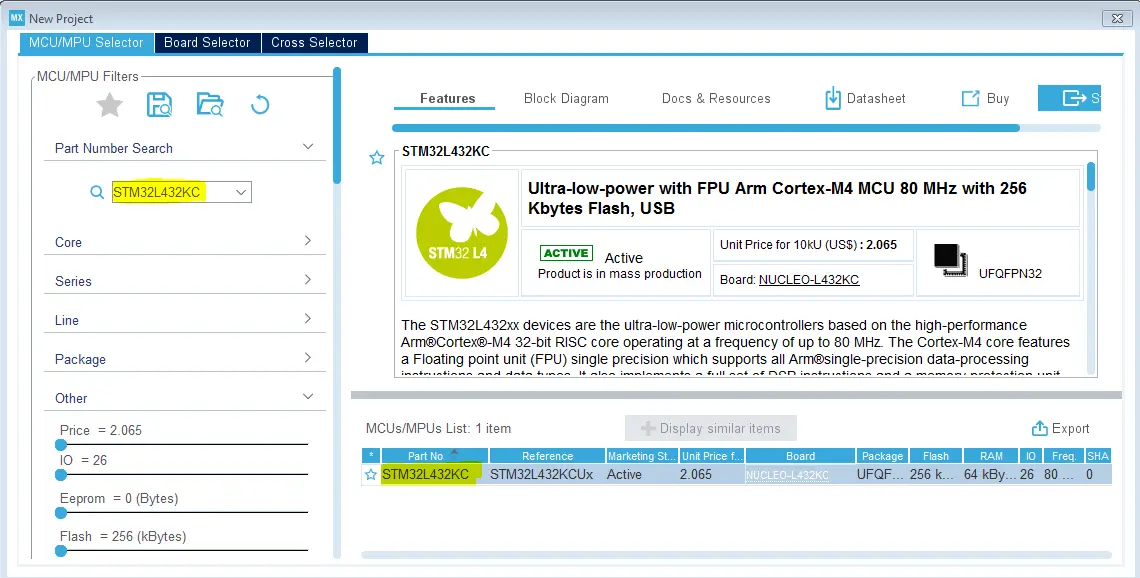
Step #2
Choose The Target MCU & Double-Click Its Name
Step #3
Enable USART2 Module (Asynchronous Mode)
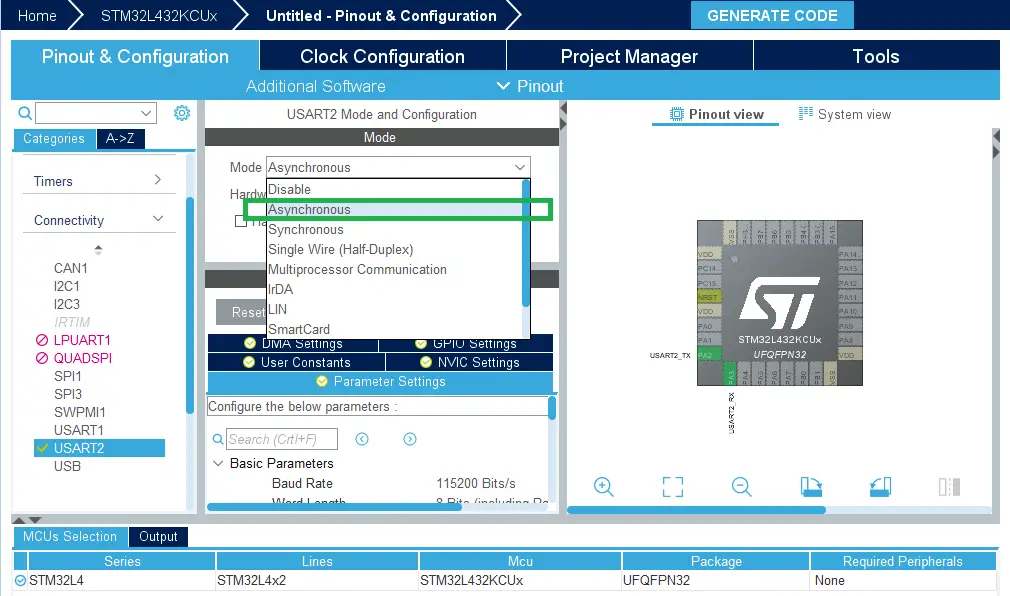
Step #4
Choose The Desired Settings For UART (Baud Rate, Stop Bits, Parity, etc..)
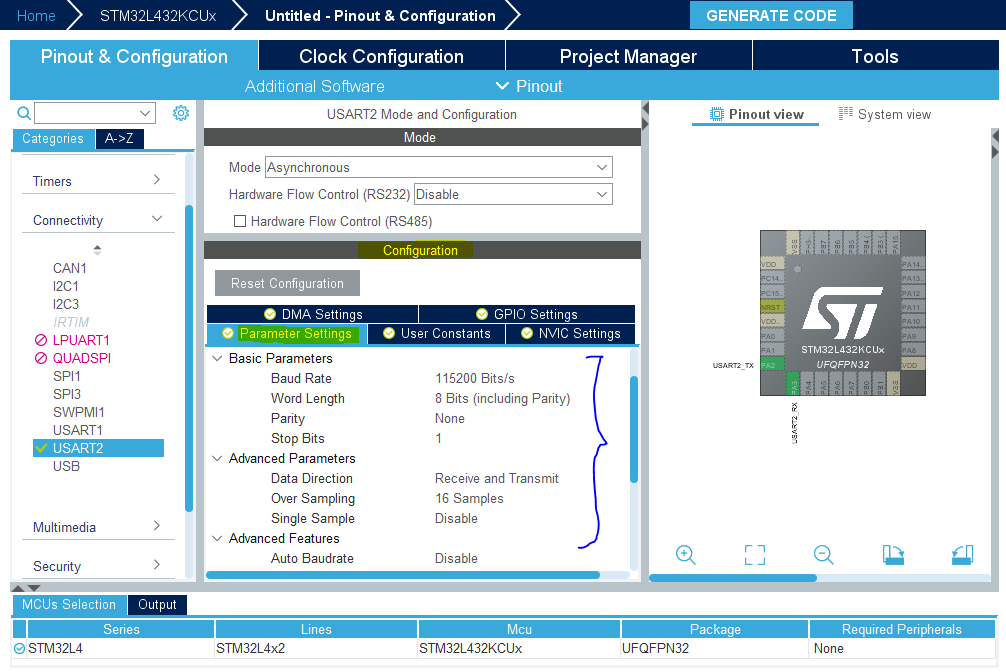
Step #5
Go To The Clock Configuration & Set The System Clock To 80MHz
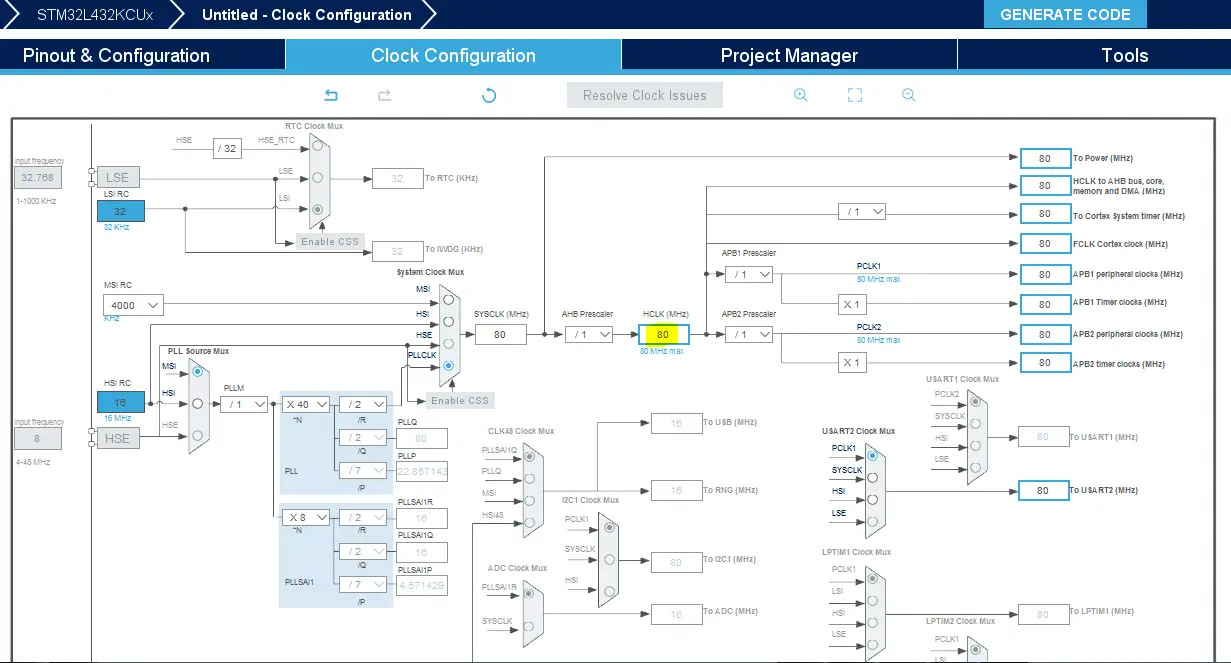
Step #6
Generate The Initialization Code & Open The Project In CubeIDE
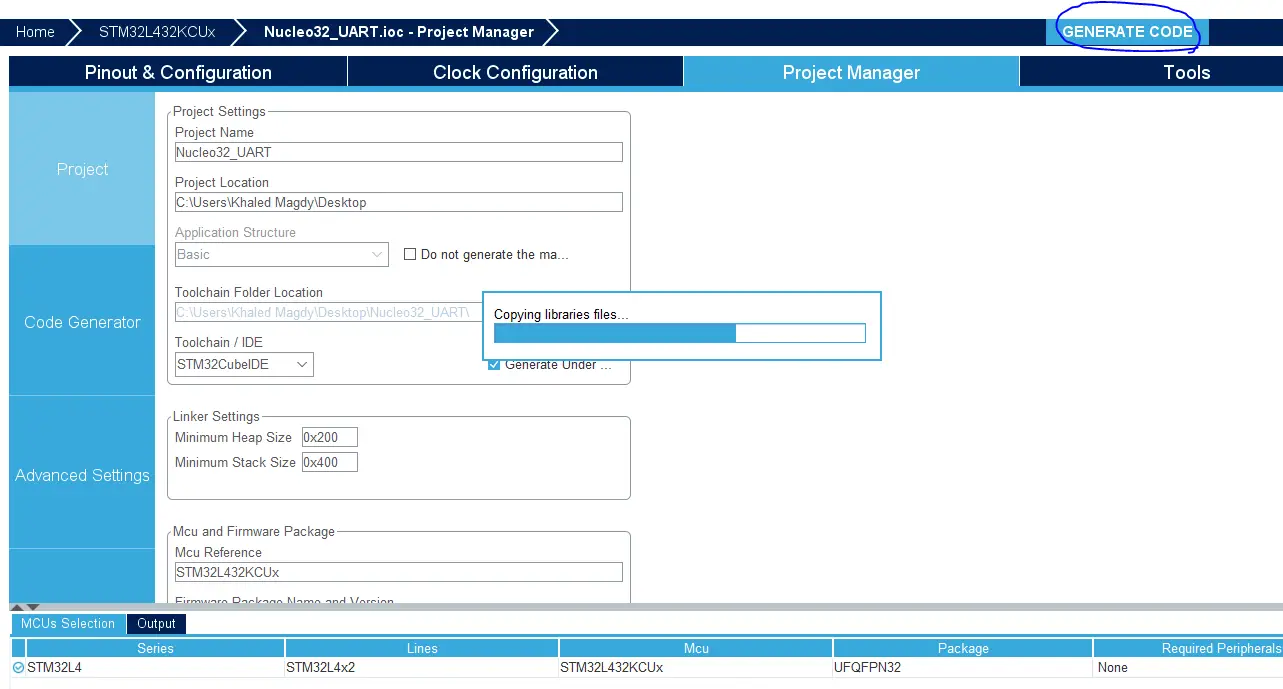
Step #7
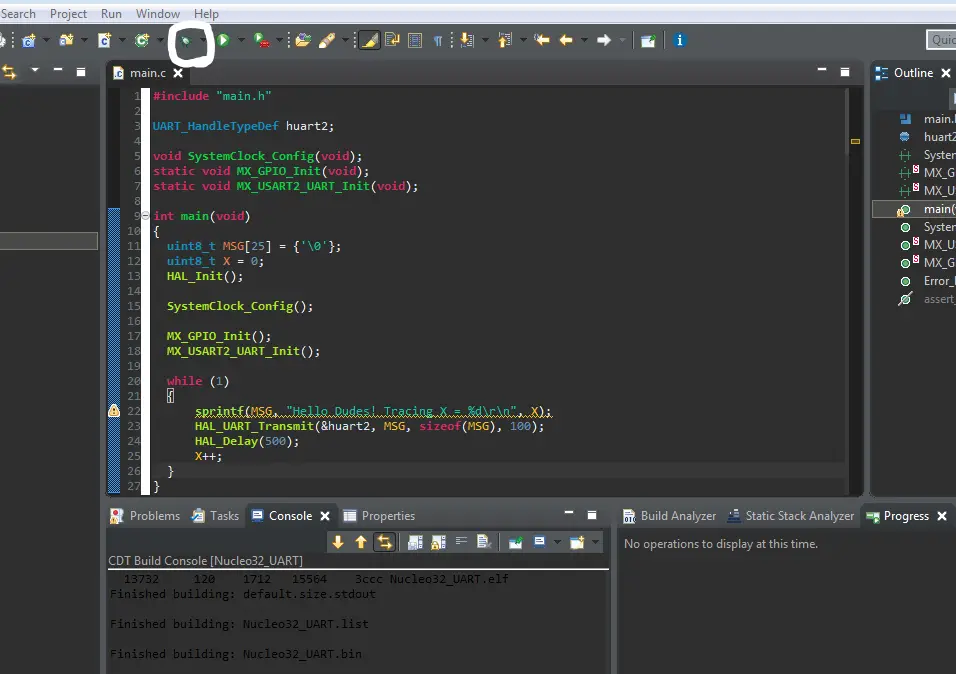
Write The Code For Your Project & Use HAL_UART_Transmit() To Print
#include "main.h"

UART_HandleTypeDef huart2;

void SystemClock_Config(void);
static void MX_GPIO_Init(void);
static void MX_USART2_UART_Init(void);

int main(void)
{
  uint8_t MSG[35] = {'\0'};
  uint8_t X = 0;

  HAL_Init();

  SystemClock_Config();

  MX_GPIO_Init();
  MX_USART2_UART_Init();

  while (1)
  {
     sprintf(MSG, "Hello Dudes! Tracing X = %d\r\n", X);
     HAL_UART_Transmit(&huart2, MSG, sizeof(MSG), 100);
     HAL_Delay(500);
     X++;
  }
}
Step #8
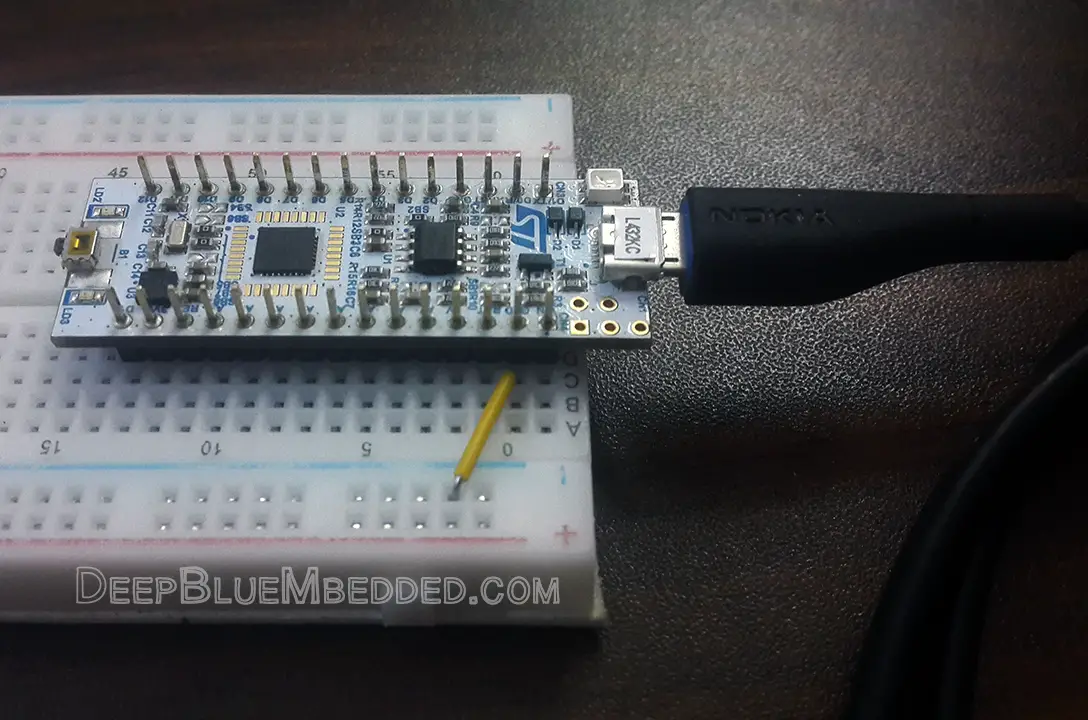
Build & Debug To Flash The Code
The Nice Part About It That The Same USB Cable Used To Flash The Code Is Now Being Used To Send The Serial Data As Well.
 |  |
Step #9
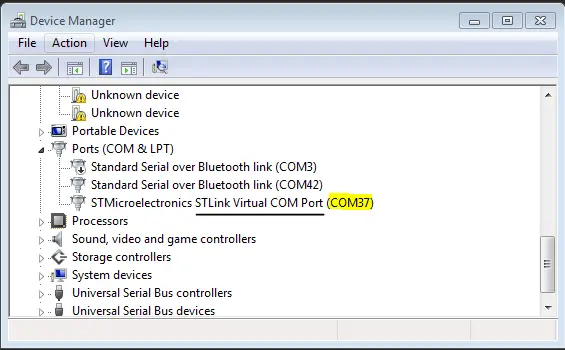
Go To The Device Manager & Check The ST-Link COM Port Num.
Step #10
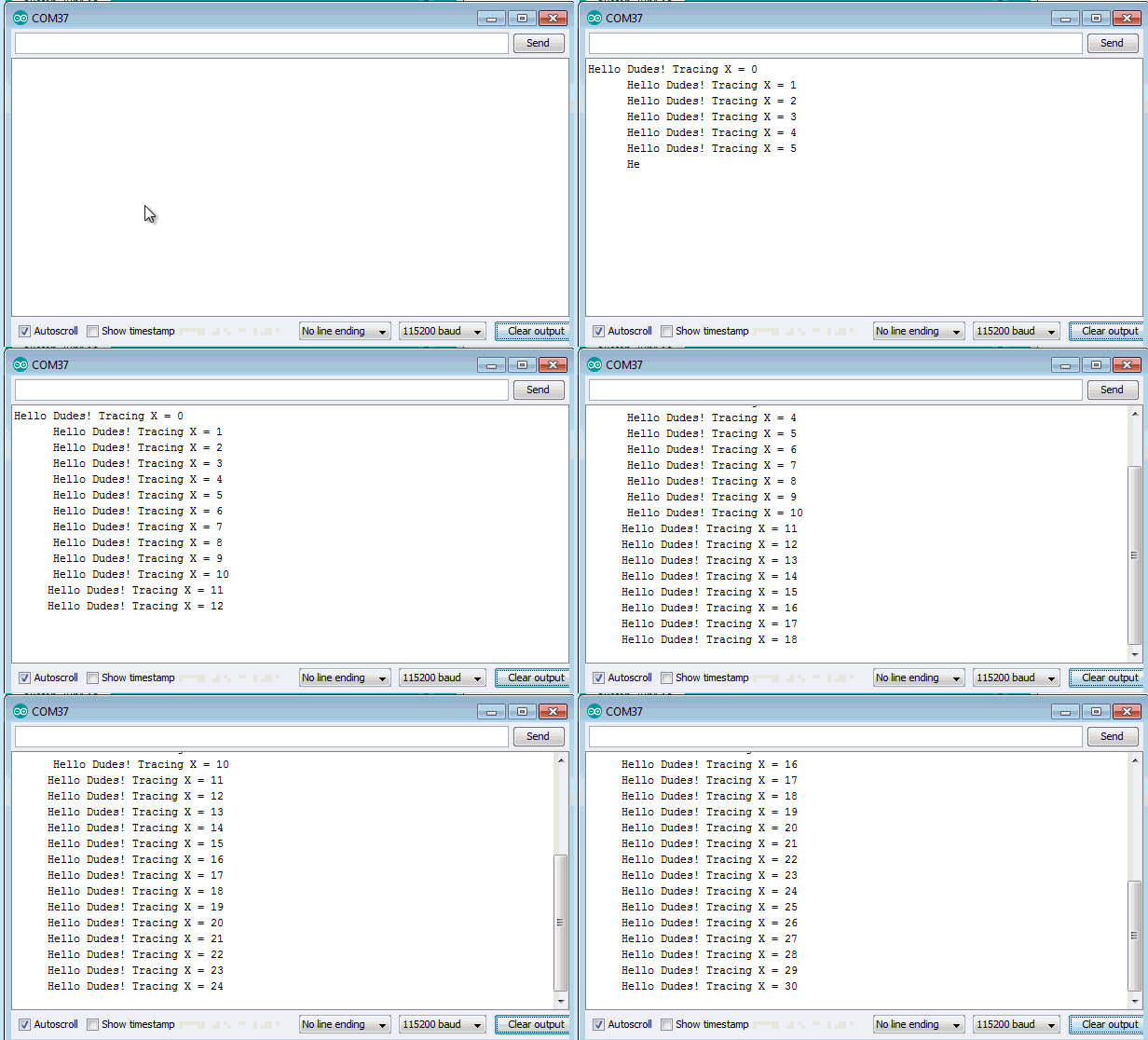
Open The Terminal From The STM32CubeIDE
Window > Show View > Console
In Console:
click on the NEW icon on its menu bar > Command Shell console > Connection type: Serial port > set Baud Rate & Connection Name > Encoding: UTF-8 > And Click OK!
Alternatively, You Can Use Any Terminal On Your PC (Like Tera Term, Arduino Serial Monitor, etc..)
The Blue Pill development board lacks an onboard ST-Link programmer/debugger, unlike Nucleo boards. That’s why we use the external USB ST-Link clone. And also it worth mentioning that the USB port on the blue pill board is connected to the STM32F103C8 hardware USB peripheral. Therefore, it can actually be used for debugging but you’ll develop a USB application for it and it’s a topic for a future tutorial.
However, the UART peripherals in the microcontroller can be used to send serial data to the PC serial COM port and display it on a terminal using a USB-TTL converter board. Hence, you’re not restricted to use a specific UART module (UART1, UART2, or UART3).
The STM32F103C8 microcontrollers’ pins are not all 5v tolerant. Hence, you must be careful when receiving input signals from the USB-TTL converter. You can send a 3.3v signal from the MCU TX pin to the USB-TTL RX pin and still get the data identified absolutely fine.
However, it won’t work the other way around without shifting the signal’s level. The TX from the USB-TTL can over-drive the MCU’s RX input pin. By checking the diagram below, you’ll notice that the pins for UART1 & UART3 are 5v tolerant while UART2 is not.
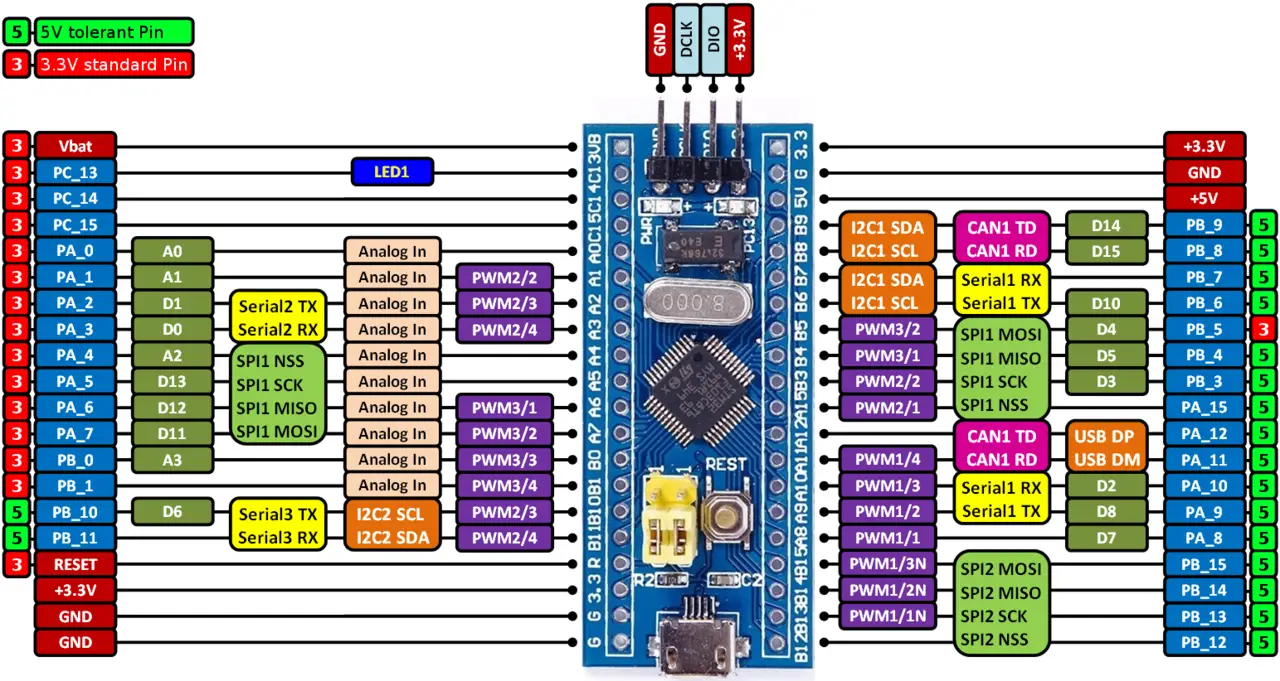
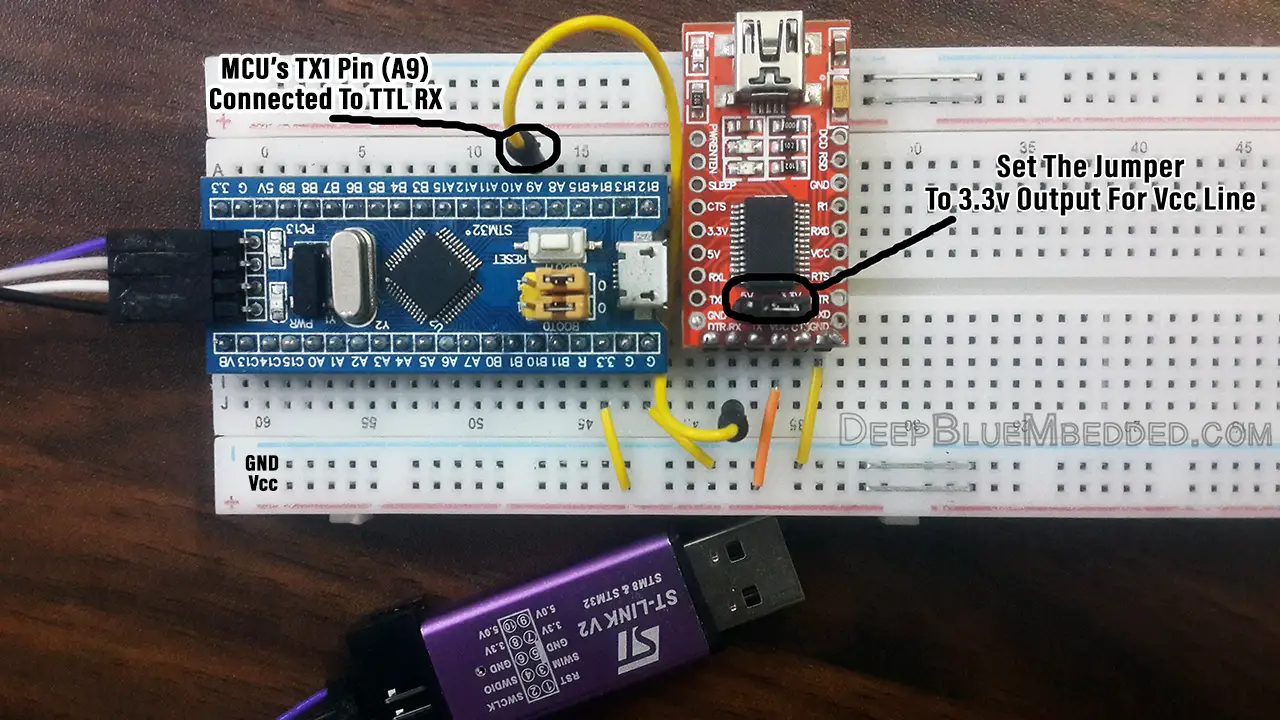
For this tutorial, we’ll use the UART1 module to send the serial data for debugging. Here is the connection diagram for this LAB. Note that we won’t send data from the terminal to the terminal, that’s why I didn’t connect that wire. If you need to send data to the microcontroller, you’ll have to connect it and configure the UART in your code so it handles data reception.
Step #1
Open CubeMX & Create New Project
Step #2
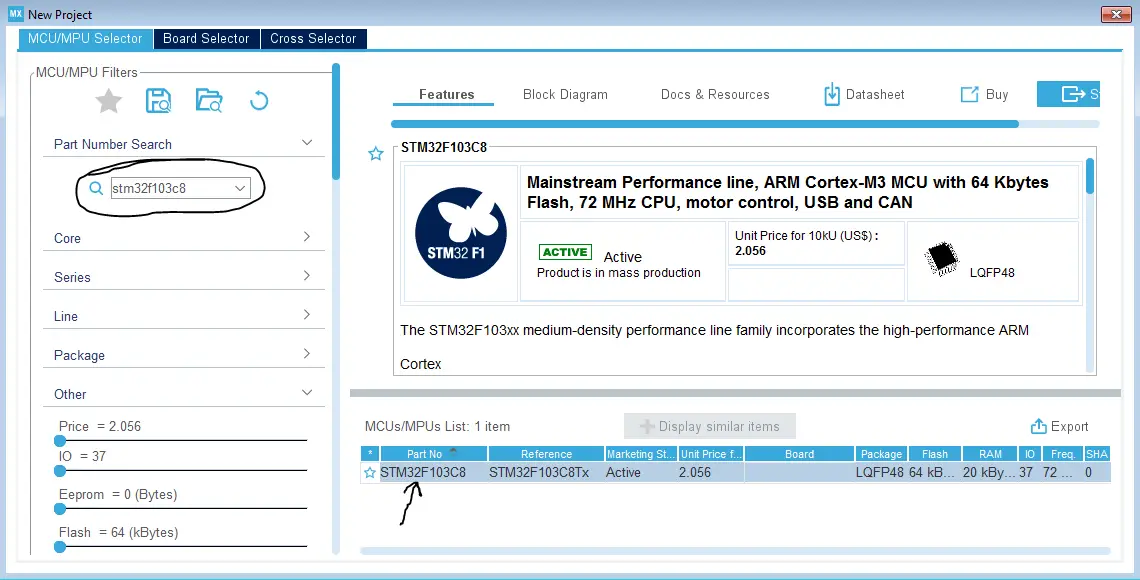
Choose The Target MCU & Double-Click Its Name
Step #3
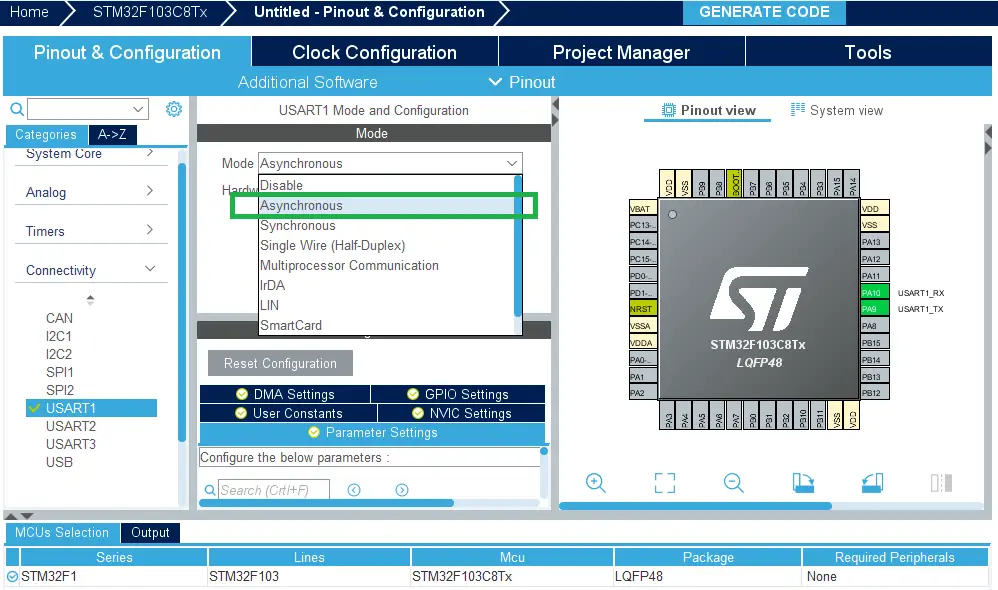
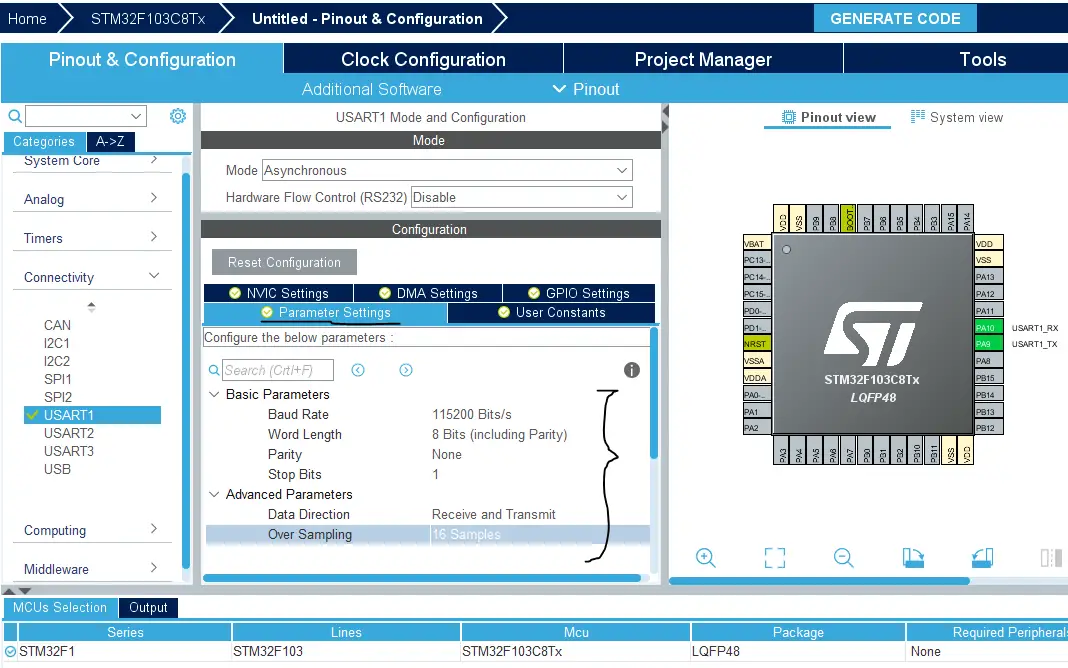
Enable USART1 Module (Asynchronous Mode)
Step #4
Choose The Desired Settings For UART (Baud Rate, Stop Bits, Parity, etc..)
Step #5
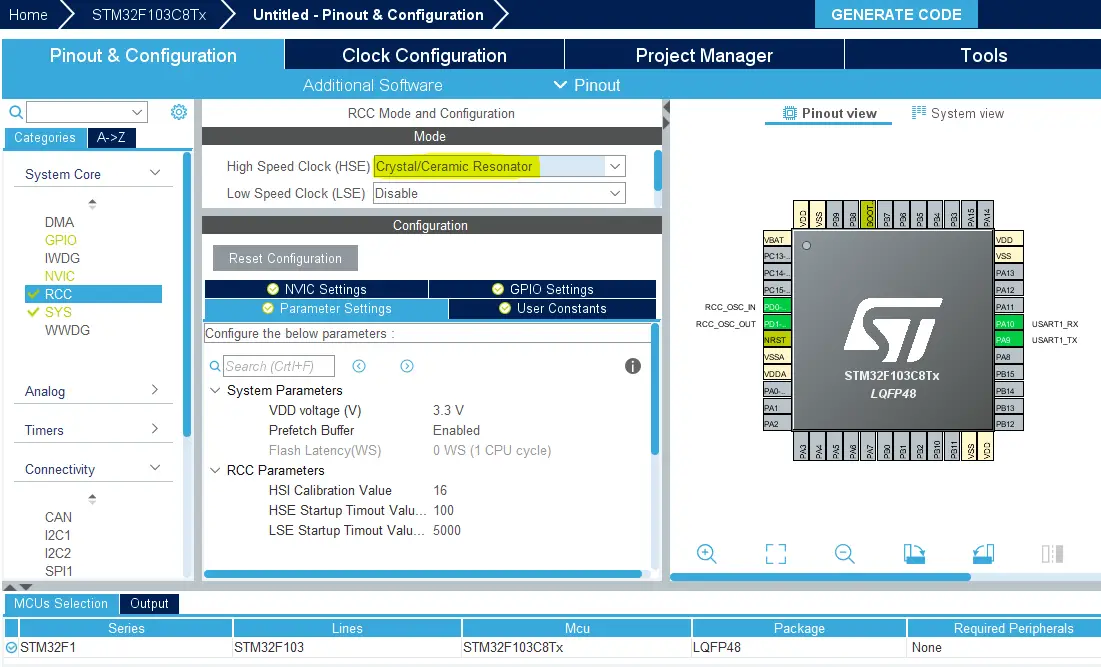
Goto The RCC Options Tab & Enable External Crystal
Step #6
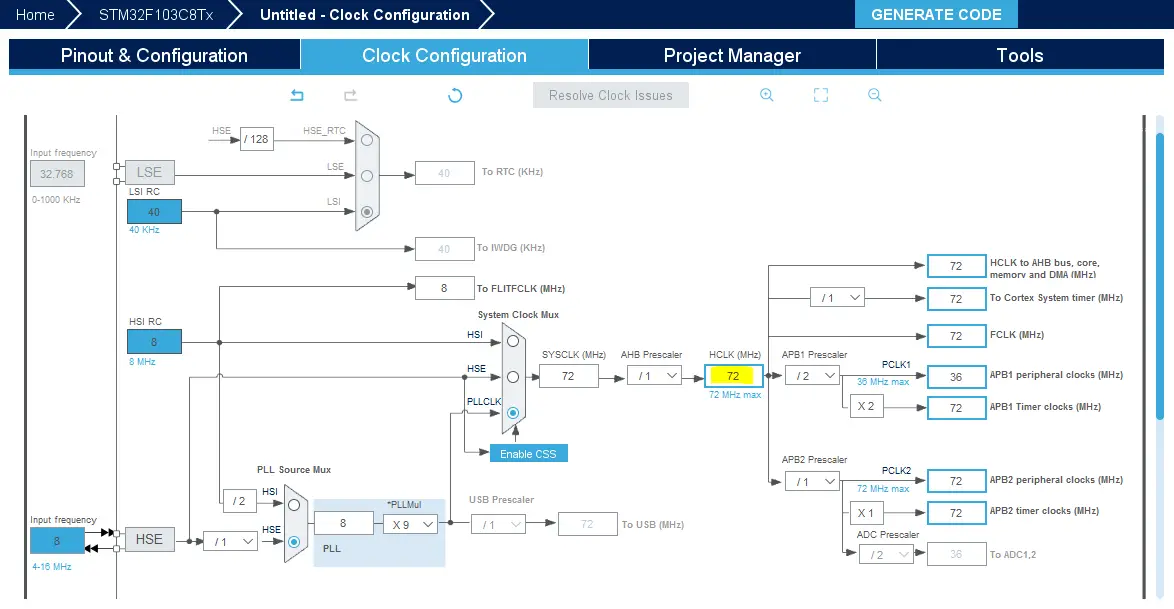
Go To The Clock Configuration & Set The System Clock To 72MHz
Step #7
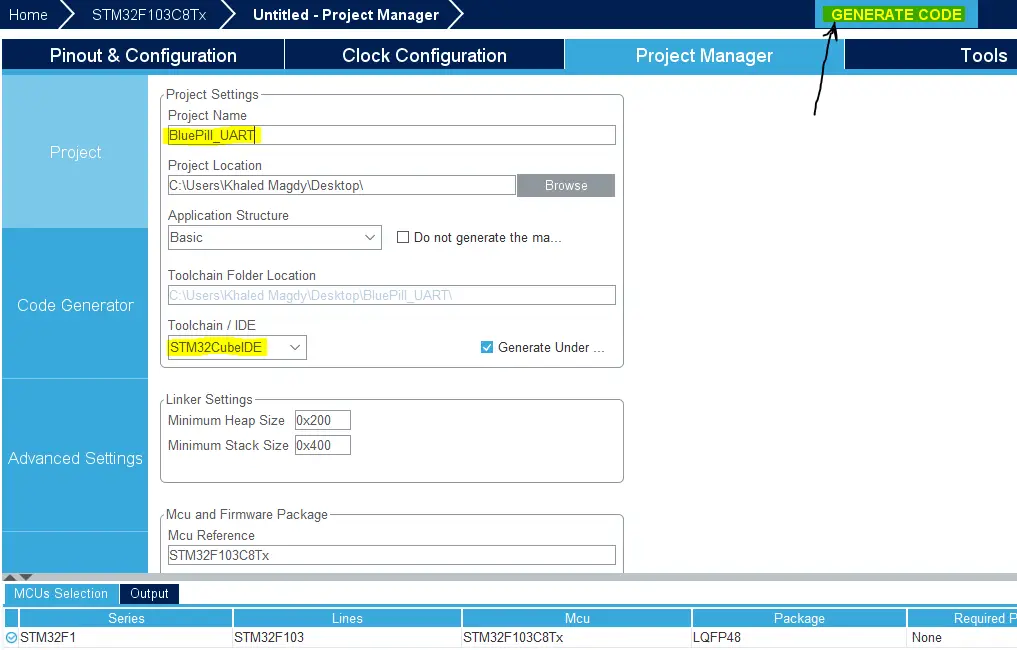
Generate The Initialization Code & Open The Project In CubeIDE
Step #8
Write The Code For Your Project & Use HAL_UART_Transmit() To Print
#include "main.h"

UART_HandleTypeDef huart1;

void SystemClock_Config(void);
static void MX_GPIO_Init(void);
static void MX_USART1_UART_Init(void);

int main(void)
{
  uint8_t MSG[35] = {'\0'};
  uint8_t X = 0;

  HAL_Init();
  SystemClock_Config();
  MX_GPIO_Init();
  MX_USART1_UART_Init();

  while (1)
  {
     sprintf(MSG, "Hello Dudes! Tracing X = %d\r\n", X);
     HAL_UART_Transmit(&huart1, MSG, sizeof(MSG), 100);
     HAL_Delay(500);
     X++;
  }
}
Step #9
Build & Debug To Flash The Code
| |
Step #10
Go To The Device Manager & Check The USB-TTL COM Port Num.
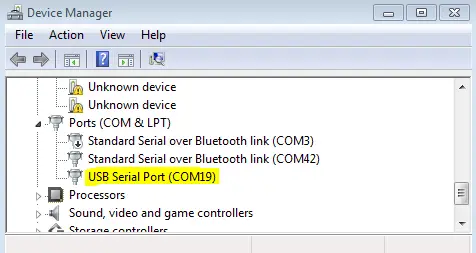
Step #11
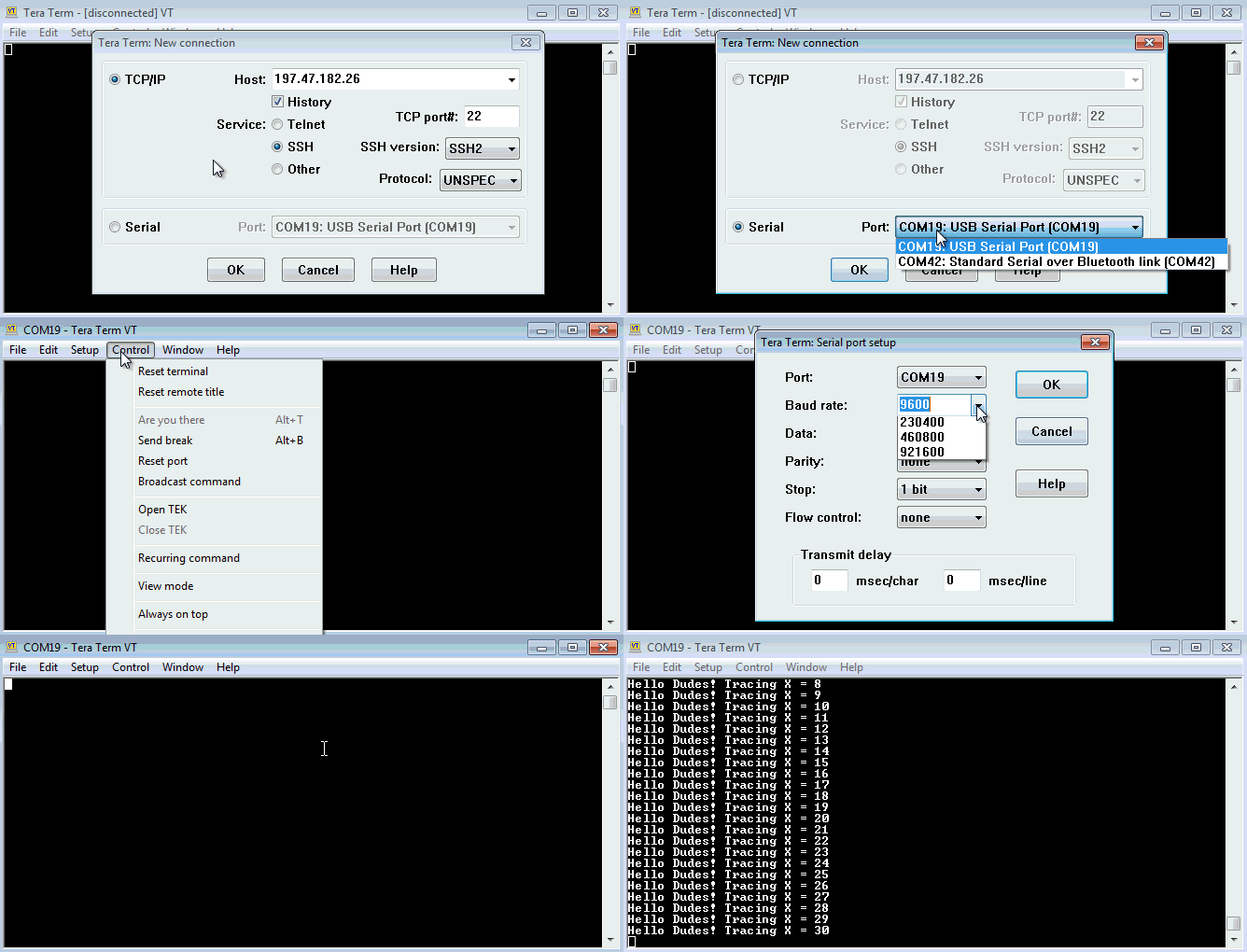
Open The Terminal From STM32CubeIDE Monitor
Window > Show View > Console
In Console:
click on the NEW icon on its menu bar > Command Shell console > Connection type: Serial port > set Baud Rate & Connection Name > Encoding: UTF-8 > And Click OK!
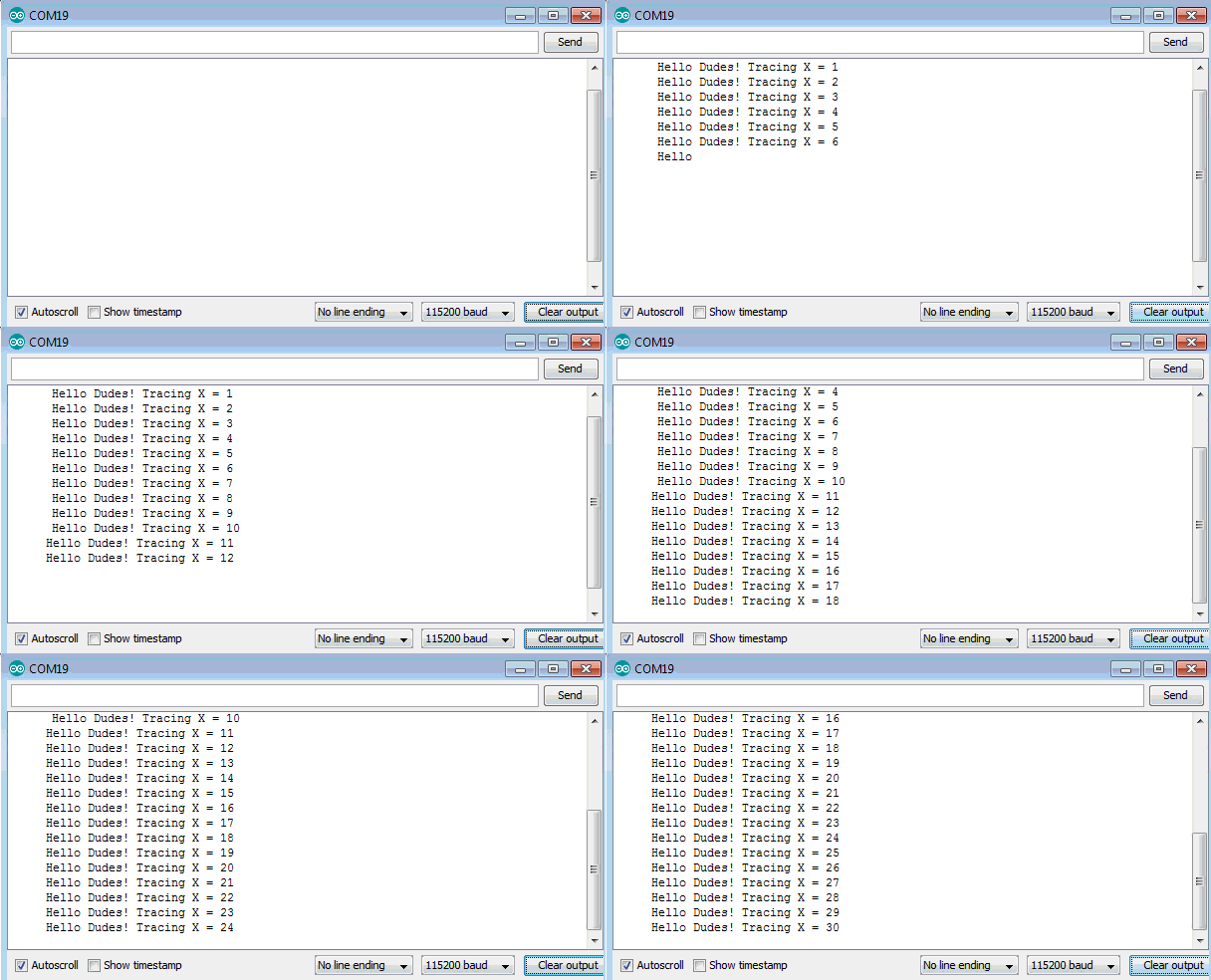
Alternatively, You Can Use Any Terminal On Your PC (Like Tera Term, Arduino Serial Monitor, etc..)
Copyright ©2025. All Rights Reserved Emblab THE RAVE INNOVATION
